


A lot of Fujifilm photographers have the same problem: you find a JPEG you love, but you no longer remember which film simulation recipe created it. Maybe it came from an X100VI walk, an X-T5 travel set, or an older X-Pro body. If the original photo still contains usable metadata, Recipe Recognition can help turn that image back into a structured Receptree recipe.
The important word is usable. A photo can reveal some camera settings, but it cannot magically recover every creative decision. This guide explains what Fujifilm Recipe Recognition can read, what it cannot know, and how to get the cleanest result when you use it inside Receptree.
For the short, practical workflow, read the Fujifilm Recipe Reader guide.
Quick Answer
To extract a Fujifilm recipe from a photo, use the original straight-out-of-camera JPEG whenever possible. Receptree Recipe Recognition can read supported Fujifilm metadata from that file, prepare an editable recipe draft, and help you turn the recovered settings into a saved recipe or recipe card.
It works best as a metadata-based workflow, not as a guess from the final image appearance. If the metadata is missing, stripped, or incomplete, the correct next step is manual review.
What Fujifilm Recipe Recognition Does
Recipe Recognition reads supported metadata from a photo and maps it into recipe fields you can review in Receptree. Instead of manually copying camera settings one by one, you can start from the information embedded in the original file.
For Fujifilm shooters, this is useful because recipes are built from a combination of camera-specific settings: film simulation, white balance, dynamic range, tone, color, grain, sharpness, clarity, and other JPEG parameters. When those values are present in the file, Receptree can use them as a starting point for a saved recipe.
From Recognized Settings to a Recipe Card
The practical workflow does not stop at detection. After Receptree prepares a recipe draft, you can review the settings, save the recipe, and use the same settings to create a clear visual reference in Recipe Cards.
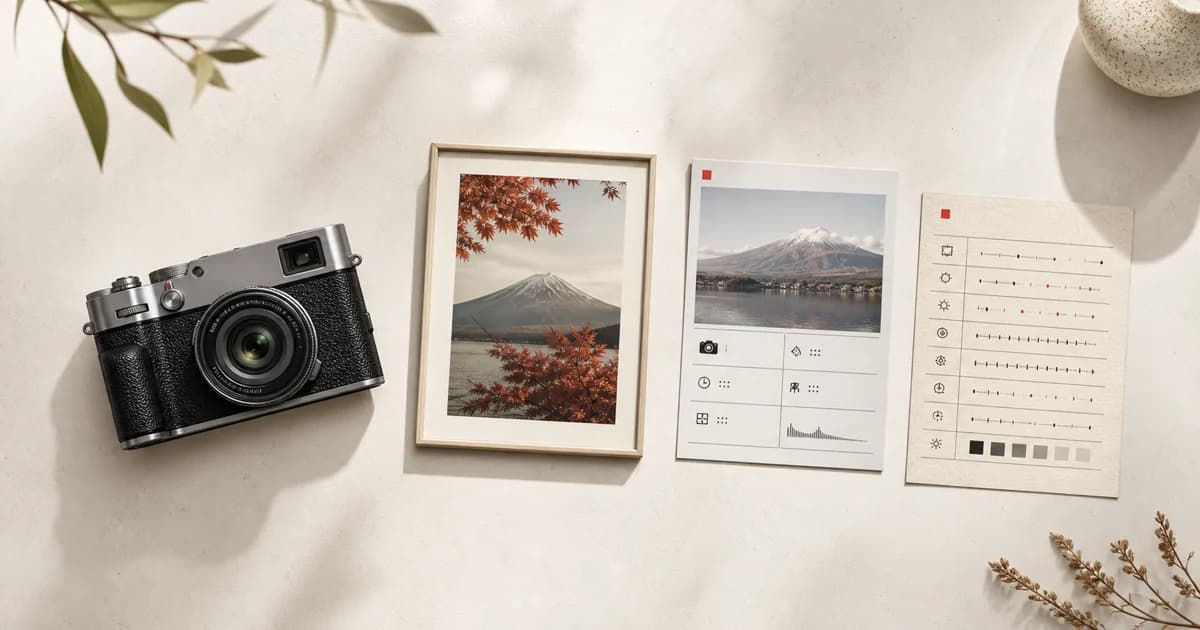
A recipe card is useful because it keeps the recipe name, camera model, film simulation, tone settings, dynamic range, grain, color chrome, and white balance shift in one shareable image. That is the format many Fujifilm shooters want when they are saving a look for later or sharing it with someone else.
Settings That May Be Recoverable
The exact result depends on the camera model, firmware, file type, and whether the metadata survived export. In the best case, Recipe Recognition may help identify:
- Camera model and basic capture information.
- Film simulation, such as Classic Chrome, Classic Neg, Acros, Eterna, or Provia.
- Dynamic range settings like DR100, DR200, DR400, or Auto.
- White balance mode, Kelvin values, and white balance shift when available.
- Highlight, shadow, color, sharpness, noise reduction, and clarity values.
- Grain effect, Color Chrome Effect, and Color Chrome FX Blue when present.
Treat the recognized result as a draft. It can save a lot of time, but you should still review the imported settings before publishing or sharing the recipe.
What It Cannot Guess Reliably
Recipe Recognition is not a visual guessing tool. If a setting is not present in the photo metadata, the responsible answer is to leave it for review instead of inventing a confident-looking value.
- It cannot reliably recover metadata that was stripped by Instagram, WhatsApp, or other apps.
- It cannot know the recipe name unless that name was stored somewhere else.
- It cannot distinguish every similar recipe by appearance alone.
- It cannot reverse Lightroom edits, presets, masks, or color grading applied after capture.
- It cannot make non-Fujifilm files behave like original Fujifilm JPEGs.
This is what makes the feature useful rather than noisy: Receptree focuses on turning supported evidence into editable recipe fields, not pretending that every image has a complete answer hidden inside it.
How to Use Recipe Recognition in Receptree
- Open Create Recipe in Receptree.
- Choose Recipe Recognition and upload the original Fujifilm JPEG.
- Wait for Receptree to read the supported metadata and prepare a recipe draft.
- Review every field, especially white balance, tone, grain, and clarity.
- Add the recipe name, description, camera notes, sample image, and any missing values.
- Save the recipe, then create a clean shareable layout with Receptree recipe cards.
Best Files to Upload
The best input is the original straight-out-of-camera JPEG copied from the SD card. If you only have a resized export or a file downloaded from a social app, the recognition result will usually be less complete.
- Use the original camera JPEG whenever possible.
- Avoid files that were re-exported from editing software unless metadata was preserved.
- Do not use screenshots as source files.
- Keep JPEG+RAW pairs when you shoot important recipe tests.
- Upload the version closest to the camera file, not the version prepared for social media.
Best Workflow for Accurate Results
If you are testing a new Fujifilm recipe, make the file path simple from the start: shoot JPEG or JPEG+RAW, keep the original JPEG, save the recipe name in your own notes, and upload that original file to Receptree before sharing or exporting it elsewhere.
This gives Recipe Recognition the best chance to read the camera data, and it gives you a reliable reference if you need to complete missing fields manually. It also makes the final recipe easier to compare with public looks in the Receptree recipe library or with guides like the Fujifilm film simulations guide.
Why This Helps Fujifilm Photographers
Fujifilm recipes are easy to love and easy to lose. You may test several looks during a trip, change a white balance shift in the field, or adjust a custom slot before a session. Recipe Recognition gives you a practical way to rebuild a look from the photo that proved it worked.
Once the recipe is saved in Receptree, it becomes searchable, editable, and shareable. You can keep private experiments organized, publish finished recipes for other Fujifilm shooters, or compare them with looks from the Receptree recipe library.
Troubleshooting Missing Settings
If Recipe Recognition does not find the settings you expected, the most common reason is stripped or incomplete metadata. Before assuming the feature failed, check the file source.
- Try the original SD card JPEG instead of an exported copy.
- Check whether your editing app preserved EXIF and MakerNote data.
- Use a file from the same camera session if the exact image was compressed elsewhere.
- Fill missing fields manually when the camera did not store them in a readable way.
FAQ
Can you extract a Fujifilm recipe from any photo?
No. Recipe Recognition works best with original Fujifilm JPEG files that still contain camera metadata. If the photo has been exported, resized, edited, or uploaded to a social platform, important settings may be missing.
Does Recipe Recognition work with Instagram or WhatsApp photos?
Usually not well. Social apps often strip EXIF and MakerNote metadata, which are the parts that can contain useful Fujifilm camera settings. Use the original camera JPEG whenever possible.
Can Recipe Recognition identify the name of a Fujifilm recipe?
It can help recover supported settings, but it cannot reliably know the human name of a recipe unless that name was stored or added elsewhere. Many different recipes can share similar settings.
Is Recipe Recognition the same as a normal EXIF viewer?
No. A normal EXIF viewer shows technical metadata. Receptree focuses on translating supported Fujifilm metadata into editable recipe fields so you can review, complete, save, and share the look.
Can I create a recipe card from recognized settings?
Yes. After reviewing and saving the recipe in Receptree, you can use the saved settings as the basis for a recipe card.
What is the best file for Fujifilm Recipe Recognition?
The best file is the original straight-out-of-camera Fujifilm JPEG copied from the SD card. It has the highest chance of preserving the metadata needed for recipe settings.
Try It With Your Own Fujifilm JPEG
If you have an original Fujifilm JPEG with the look you want to rebuild, start a new recipe in Receptree and let Recipe Recognition prepare the first draft. The final result is still yours to review, name, refine, and share.
Start here: create a Fujifilm recipe from a photo.
After the recipe is saved, open Recipe Cards to turn the settings into a clean reference card for your own archive, a public recipe page, or a shareable post.