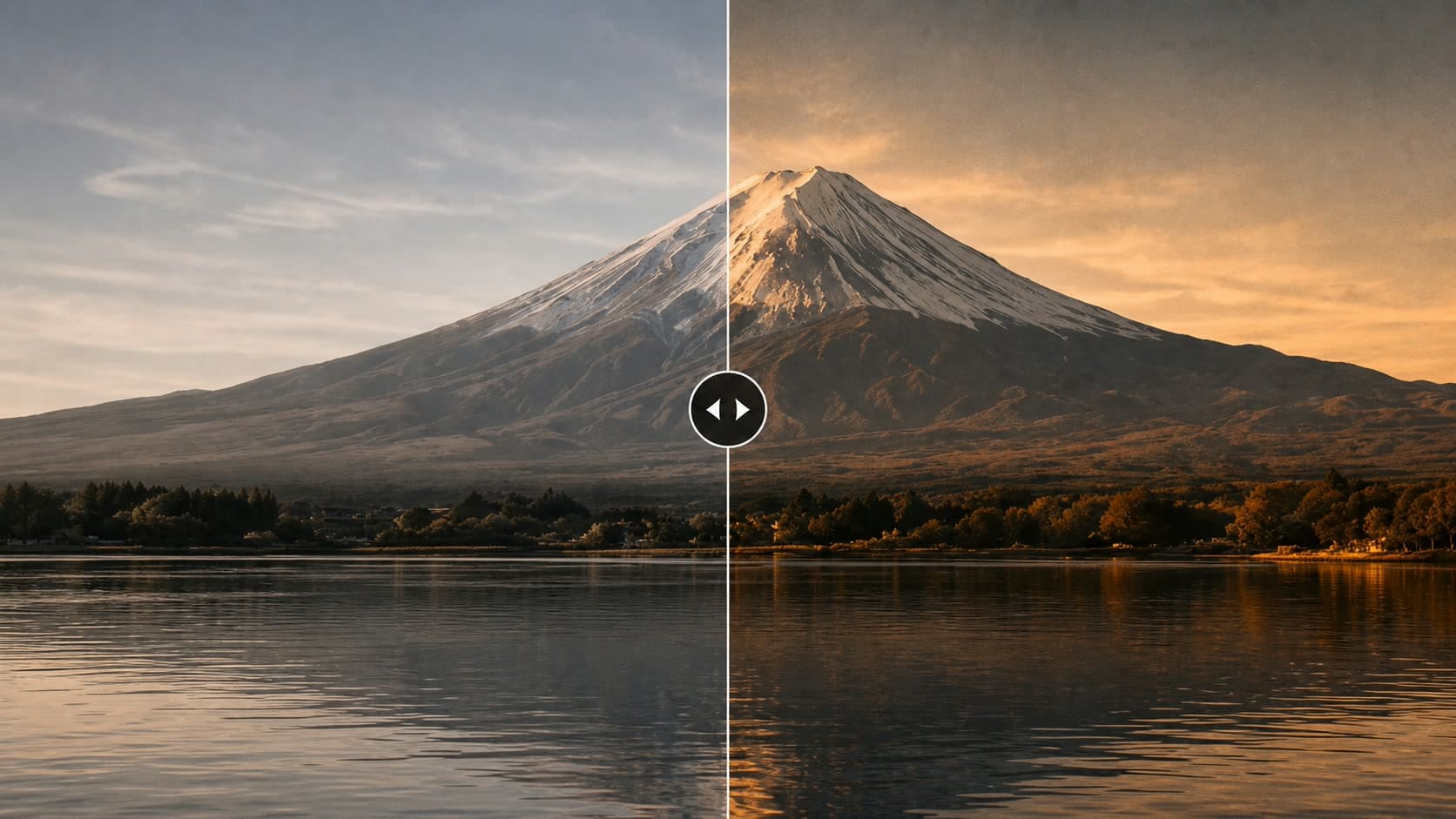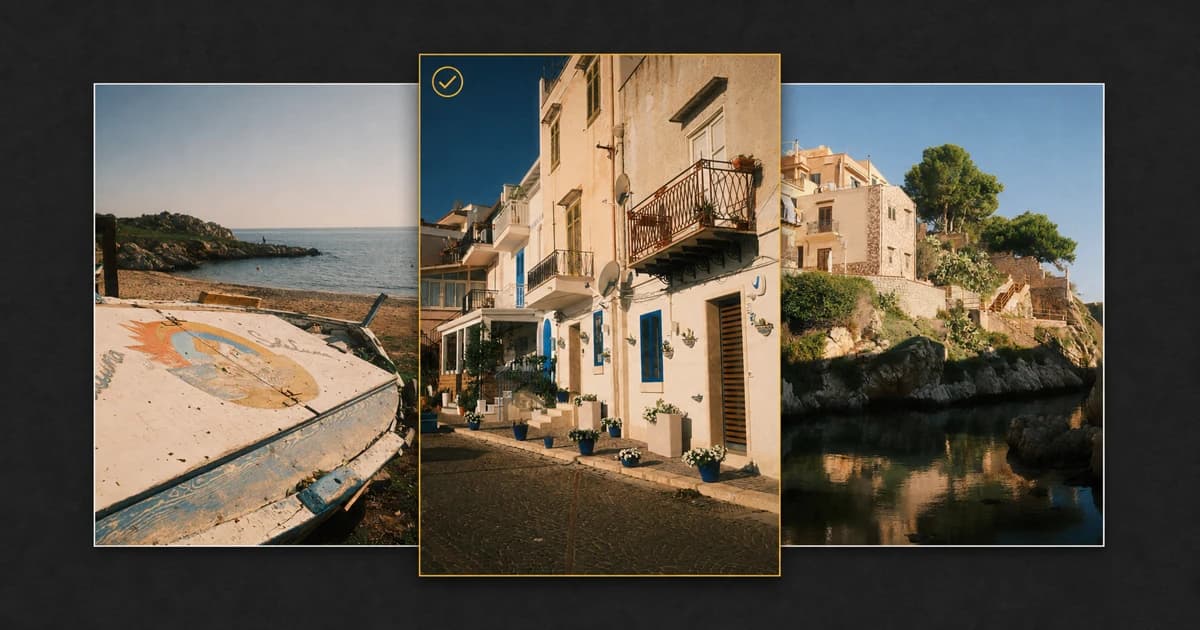


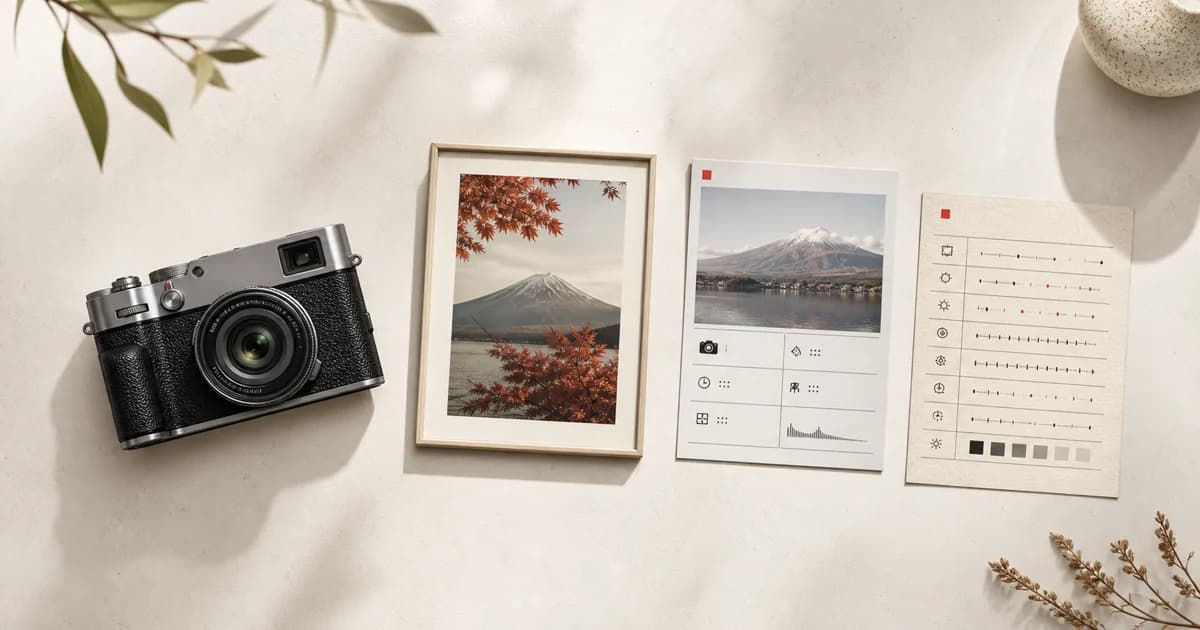
A finished Fujifilm JPEG can tell more than one story. Sometimes the photograph should stand on its own inside a carefully chosen border. Sometimes viewers want to know the camera, lens, aperture, shutter speed, ISO, and film simulation. And sometimes the useful part is the complete recipe that can be saved to another camera.
Frames, Metaframes, and Recipe Cards in Receptree Studio are built around those three different goals. Understanding the distinction makes the export cleaner and prevents technical information from competing with the photograph.
Frames vs Metaframes vs Recipe Cards
| Studio tool | Main purpose | Best for | Information shown |
|---|---|---|---|
| Frames | Visual presentation | Portfolios, social posts, prints | The photo and its border |
| Metaframes | Document one exposure | EXIF sharing, gear context, photo journals | Camera, lens, exposure, and selected metadata |
| Recipe Cards | Document a reusable look | Recipe sharing, reference, community posts | Film simulation and JPEG recipe settings |
1. Frames: Keep the Photograph in Control
A photo frame is the least technical option. Its job is to create separation around the image, improve presentation, and give the export a deliberate finish. A clean white border can make a dense street photograph easier to read; a dark double border can contain a high-contrast monochrome frame; and an instant-film or analog treatment can support a more nostalgic series.
Choose Receptree Frames when the image is already the full message. This is usually the strongest choice for a portfolio sequence, a gallery post, a print preview, or a social carousel in which settings would become visual noise.
Use a Frame when:
- you want a film border or polished photographic edge;
- the photograph should remain larger than any supporting information;
- the export belongs to a visual series with consistent spacing; or
- camera settings are not important to the viewer.
2. Metaframes: Turn EXIF Data into Part of the Presentation
An EXIF frame combines a photograph with selected capture metadata. Receptree calls these layouts Metaframes because the information is designed as part of the frame rather than stamped over the image as a conventional watermark.
Depending on the JPEG and the chosen layout, useful fields can include camera model, lens, focal length, aperture, shutter speed, ISO, date, and film simulation. This makes a Metaframe useful for photo diaries, camera comparisons, behind-the-shot posts, and educational examples where exposure choices matter.
The key is restraint. Show the fields that add context and remove those that do not. A landscape photograph might benefit from focal length, aperture, shutter speed, and ISO. A film simulation comparison may need camera and simulation instead. Open Metaframes to choose a metadata-led layout and review every field before export.
3. Recipe Cards: Make the Look Repeatable
A Recipe Card answers a different question: not merely “How was this exposure made?” but “How can I reproduce this JPEG look?” It can document the film simulation, Dynamic Range, white balance, red and blue white balance shift, highlight and shadow tone, color, sharpness, noise reduction, clarity, Grain Effect, and Color Chrome settings.
Use Recipe Cards when another photographer should be able to save the look to a compatible Fujifilm camera. A sample image gives the settings visual context, while a clear hierarchy keeps the recipe name, base simulation, and white balance easy to scan on a phone.
For the complete creation workflow, see How to Create a Fujifilm Recipe Card. That guide covers templates, manual entry, Recipe Recognition, and download; this guide helps decide when a Recipe Card is the right output in the first place.
A Simple Fujifilm JPEG-to-Export Workflow
- Start with the audience. Decide whether they need the photograph, the exposure metadata, or the complete reusable recipe.
- Upload the original Fujifilm JPEG. The original file gives Receptree the best chance of reading supported metadata; social-media copies and screenshots often strip EXIF information.
- Choose one clear format. Use Frames for presentation, Metaframes for capture context, or Recipe Cards for repeatable camera settings.
- Remove unnecessary details. More information does not automatically make a stronger export. Preserve a clear hierarchy around the photograph.
- Check the mobile-size preview. Important settings should remain readable, borders should feel balanced, and the image should still be the focal point.
Which Receptree Studio Tool Should You Choose?
Choose a Frame for a finished photograph, a Metaframe for a finished photograph plus EXIF context, and a Recipe Card for a Fujifilm look that other photographers can understand and recreate.
You do not need to force one format to do all three jobs. The same photograph can become a minimal framed portfolio image, an informative metadata post, and a recipe reference—each tailored to a different audience.
Frequently Asked Questions
What is a Fujifilm EXIF frame?
A Fujifilm EXIF frame presents a photograph together with selected metadata such as camera, lens, focal length, aperture, shutter speed, ISO, and film simulation. In Receptree Studio, these metadata-led layouts are called Metaframes.
What is the difference between a Metaframe and a Recipe Card?
A Metaframe documents how one photograph was captured, while a Recipe Card documents the reusable Fujifilm JPEG settings behind a look. A Recipe Card can include film simulation, Dynamic Range, tone, color, grain, clarity, and white balance shift.
Can I add a simple film border without showing camera settings?
Yes. Receptree Frames are designed for visual presentation and can add clean borders, instant-film styling, double borders, or other photographic treatments without turning the image into a technical reference.
Which export should I use to share a Fujifilm recipe?
Use a Recipe Card when the settings need to be readable and reusable. Use a Metaframe when the camera and exposure information of a specific image matters, or a Frame when the photograph itself should remain the focus.
Turn the Final Photograph into the Right Format
Choose a presentation that supports the photograph: a Frame for a finished image, a Metaframe for capture context, or a Recipe Card when the settings should travel with it.