Fujifilm Color: Saturation in Context, Not a Mood Button
Use Fujifilm Color to refine saturation after choosing a simulation and white balance, without forcing every subject to look vivid.
 Receptree
Applies to: Fujifilm image-quality settings, with menu paths and options checked against the X100VI still-photo manual. Other models and firmware can differ.
Try a look
 Original
Loading preview…
Illustrative preview
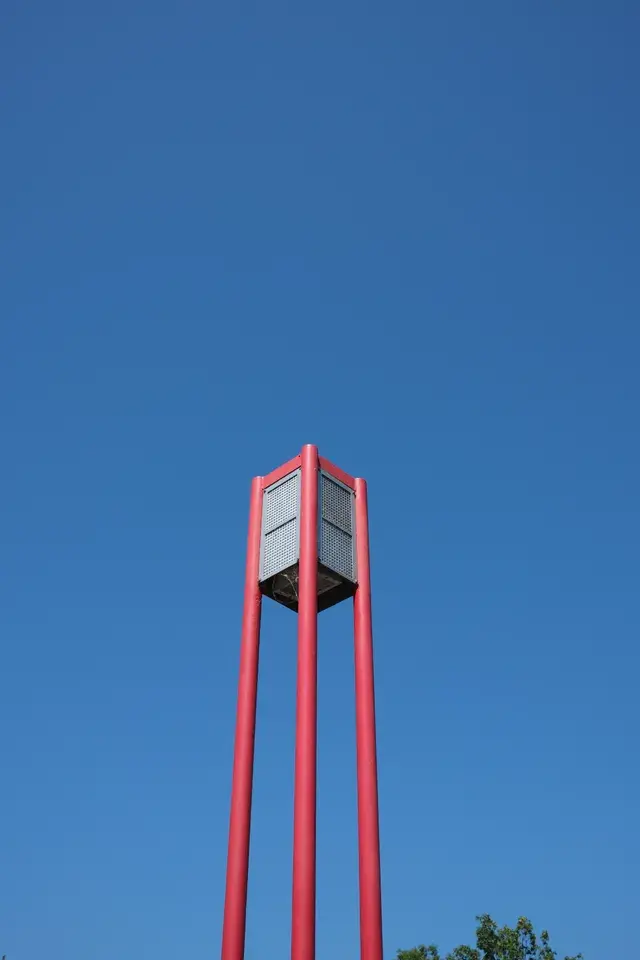
An approximation on an existing JPEG, not an exact Fujifilm camera rendering. Compare the red sculpture with the sky, then try a scene with more muted colours.
What this setting does
Color adjusts overall colour intensity within the JPEG recipe. It works on top of the chosen Film Simulation and white-balance direction. It changes how assertive colours feel across the frame, from restrained palettes to more vivid rendering.
Find it on the X100VI
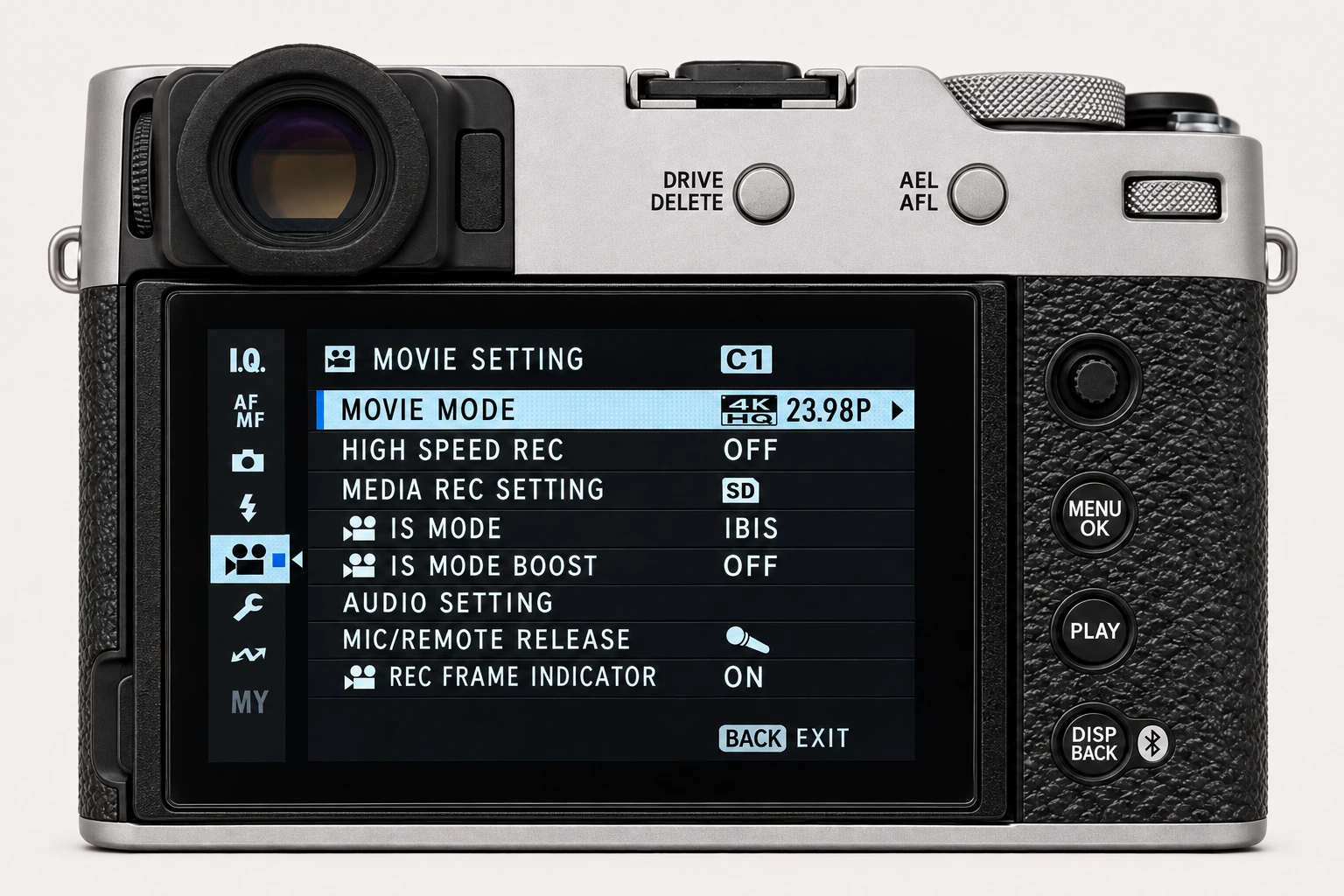
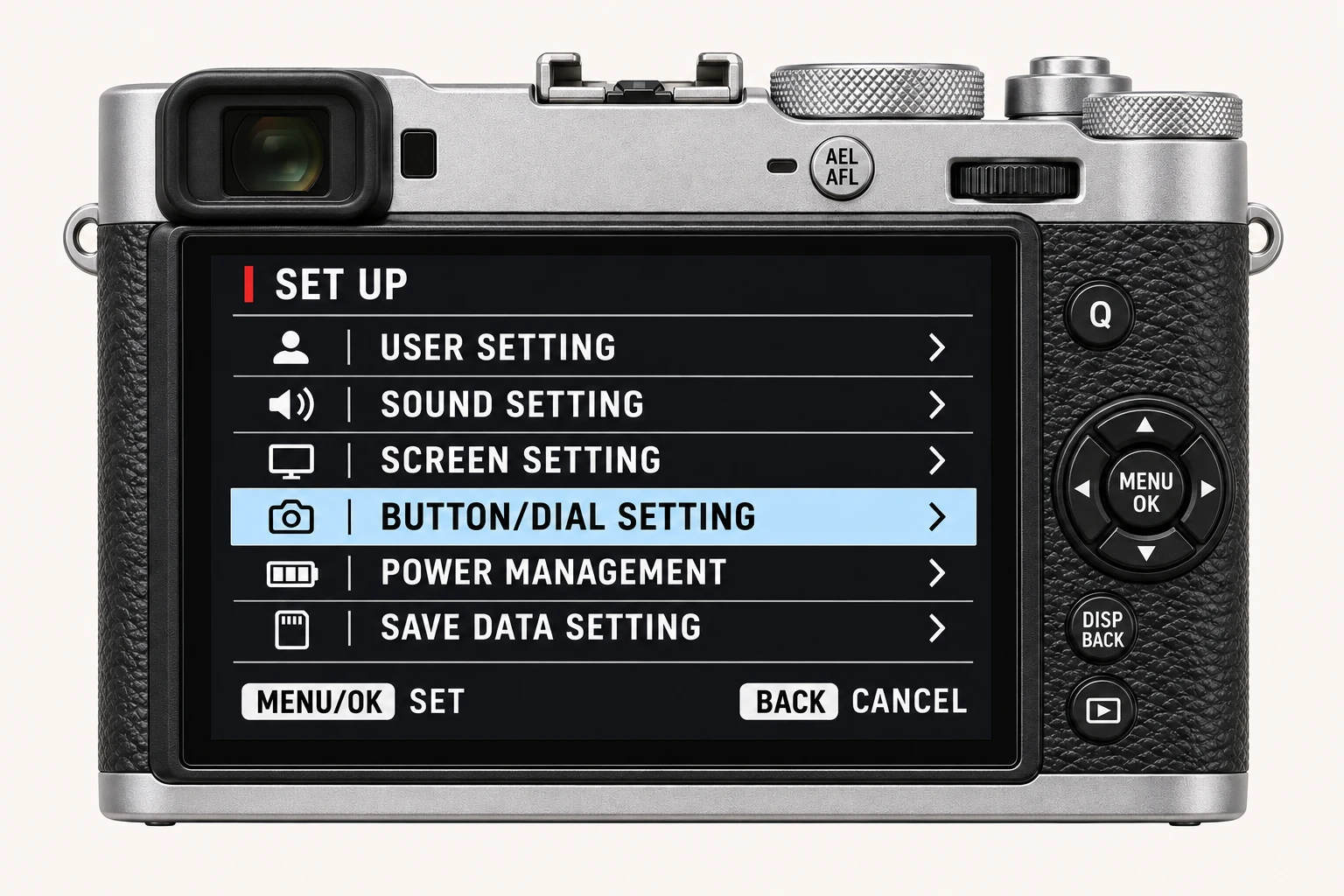
In the still-photo shooting display, open MENU/OK > IMAGE QUALITY SETTING > COLOR. Find Color on I.Q. page 2/3. Available colour controls depend on the selected film simulation. Menu wording and availability can change with firmware, shooting mode and file format.
Options and practical choices
These options refer to the X100VI still-photo menu. Use them as a checked reference for this body; confirm the corresponding choices in the manual for another camera.
| X100VI option | How to use it |
|---|---|
| −4 to +4 | Lower values reduce colour intensity; higher values increase it. Start at 0 and compare adjacent values with skin and saturated subjects. |
When to use it
Use it after the simulation and white balance are settled, especially when the scene needs a small overall adjustment rather than a colour cast change.
Common mistakes and interactions
Avoid using it to repair an unsuitable white-balance shift or to make weak light look like a different scene.
- A white-balance shift changes colour direction; Color changes intensity. Set the base and shift before increasing saturation.
- Colour simulations establish different starting palettes. Check whether the selected monochrome simulation makes a colour control unavailable.
Try a controlled comparison
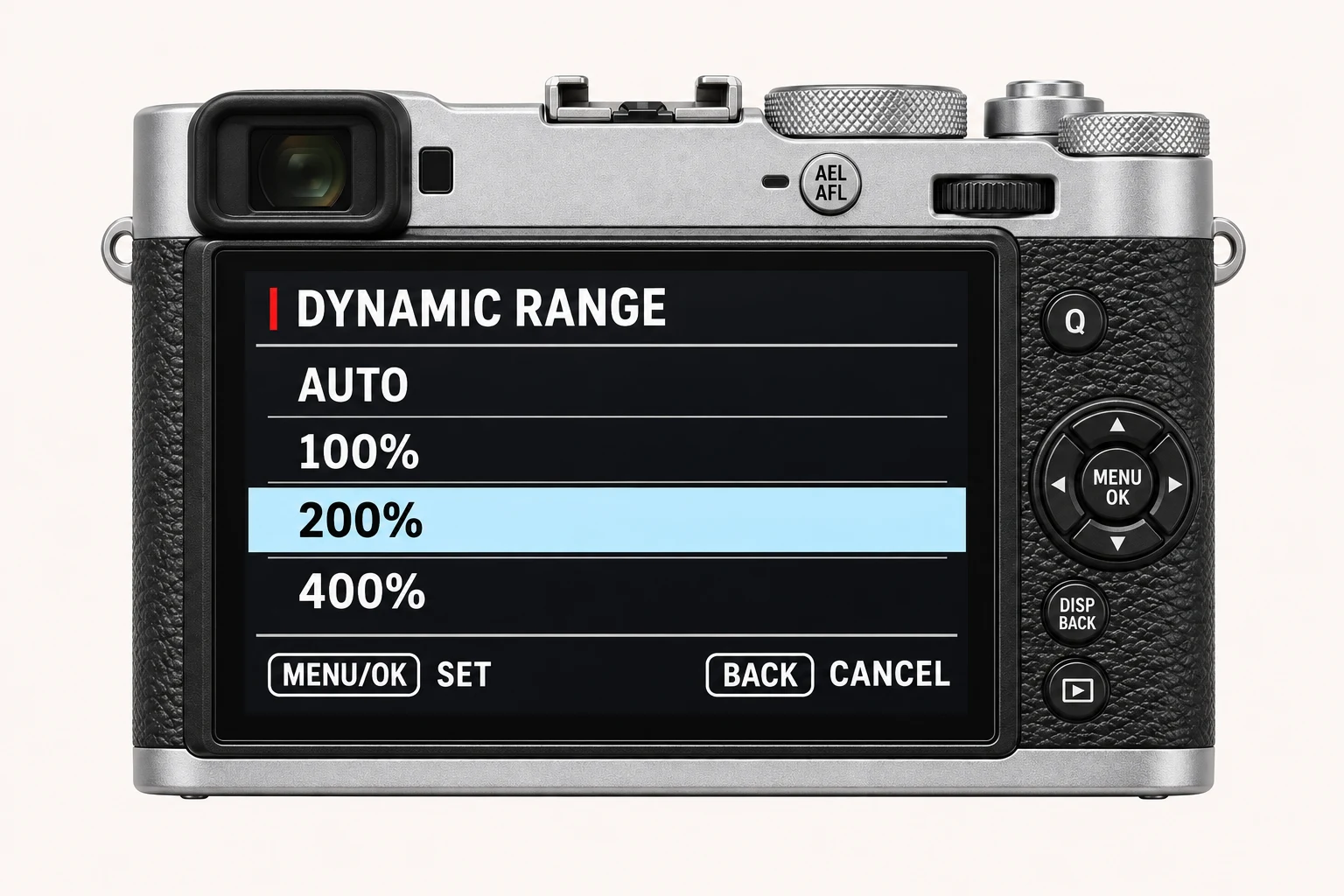
Use one scene with skin tones, neutrals and strong colour. Compare adjacent values rather than jumping from the lowest to highest setting. Keep the original files, label the settings and compare at both full resolution and the size you will share. The menu illustration shows controls, not a simulated photographic result.
Using a different Fujifilm camera
Color values are camera-menu values, not a universal saturation standard. Compare visible output on the intended body. The numerical options and menu path above are checked for the X100VI. They are not a compatibility promise for every X Series or GFX body.
Four recipes to try next
Choose a community recipe, check it against your camera and take it into the field.