Fujifilm Highlight Tone: Shaping Bright Parts of a JPEG
Use Highlight Tone to refine bright JPEG tones after exposure and Dynamic Range have done their jobs.
 Receptree
Applies to: Fujifilm image-quality settings, with menu paths and options checked against the X100VI still-photo manual. Other models and firmware can differ.
Try a look
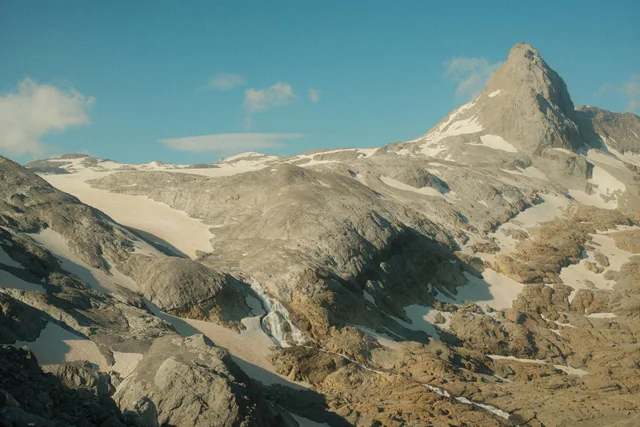
 Original
Loading preview…
Illustrative preview
An approximation on an existing JPEG, not an exact Fujifilm camera rendering. Watch the light sky and pale ridges rather than judging only the overall brightness.
What this setting does
Highlight Tone adjusts the character of the bright end of Fujifilm’s JPEG tonal response. It can make bright areas feel more restrained or more emphatic, especially around clouds, pale walls, skin highlights and reflective surfaces.
Find it on the X100VI
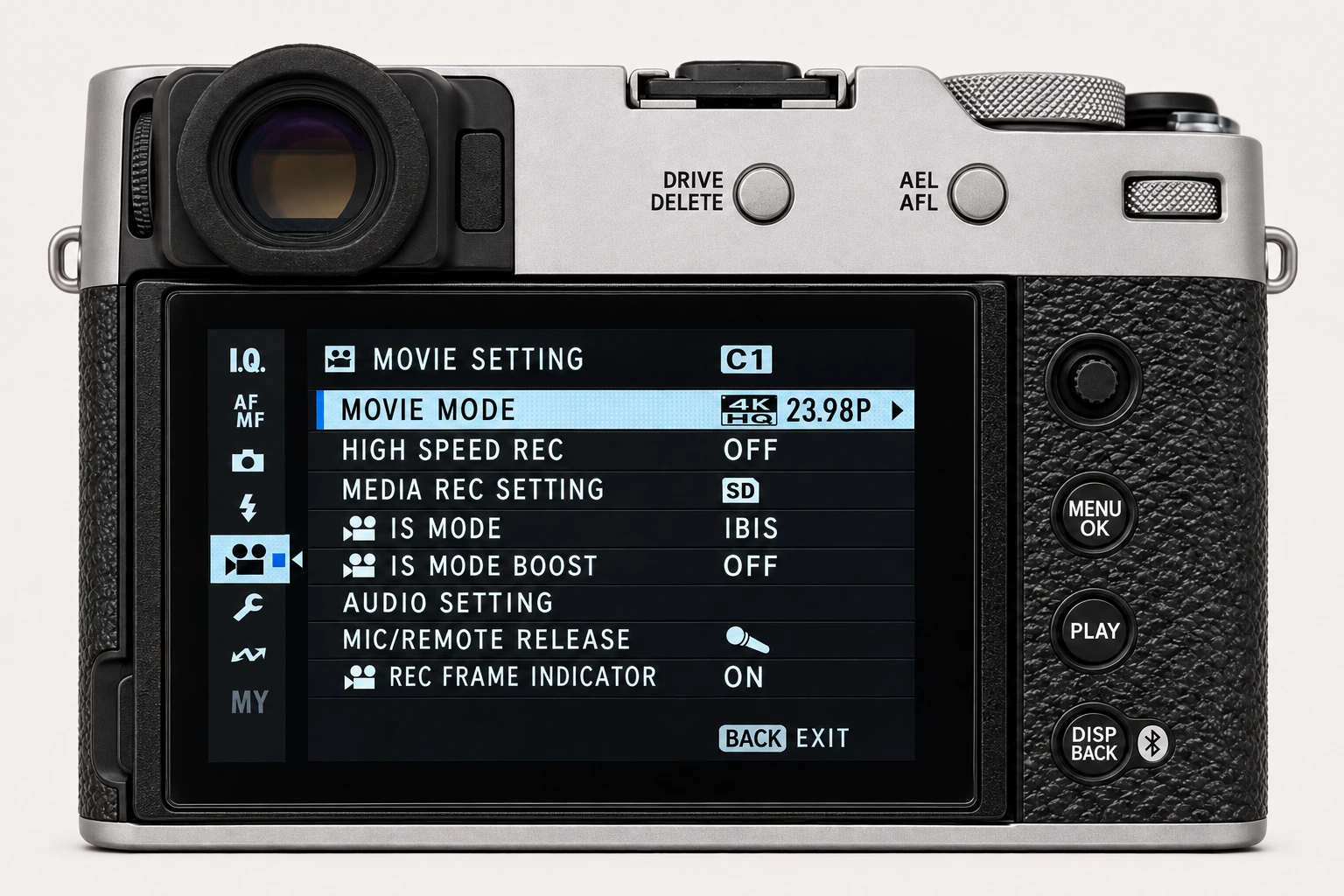
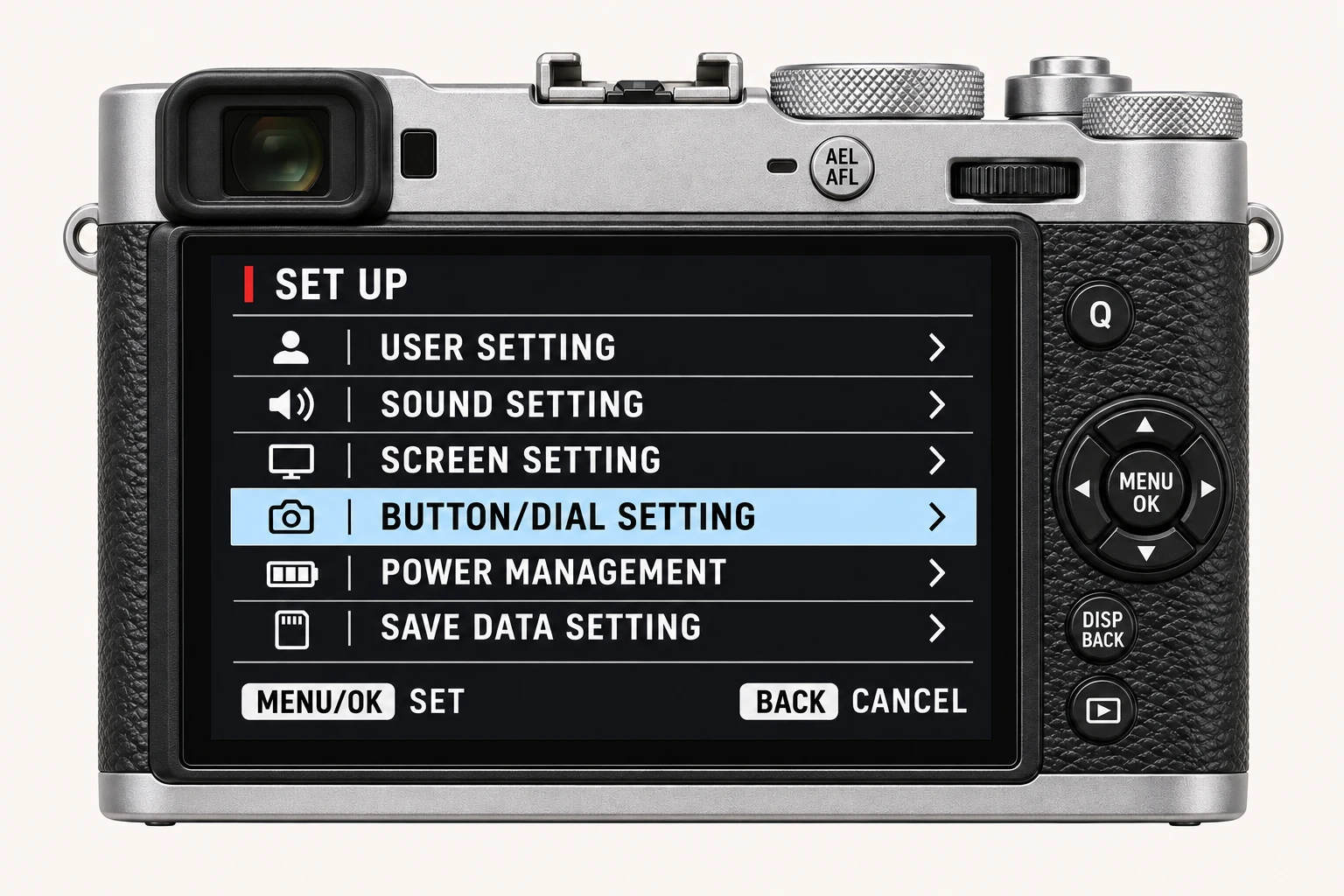
In the still-photo shooting display, open MENU/OK > IMAGE QUALITY SETTING > TONE CURVE > HIGHLIGHTS. On the X100VI, Highlight Tone is the Highlights adjustment inside Tone Curve on I.Q. page 2/3. Menu wording and availability can change with firmware, shooting mode and file format.
Options and practical choices
These options refer to the X100VI still-photo menu. Use them as a checked reference for this body; confirm the corresponding choices in the manual for another camera.
| X100VI option | How to use it |
|---|---|
| −2 to +4 | Inside TONE CURVE > HIGHLIGHTS on the X100VI. Lower values soften bright tones; higher values make them more emphatic. |
When to use it
Use it after choosing exposure and Dynamic Range, when the upper tones still need a deliberate character.
Common mistakes and interactions
Do not use it to recover clipped highlights. Once detail is gone, a tone setting cannot restore it.
- D Range Priority takes over Tone Curve unless it is Off.
- Choose exposure and Dynamic Range first. A lower Highlights value can soften the JPEG response but cannot restore already-clipped capture detail.
Try a controlled comparison
Make a bracket-free sequence of the same high-contrast scene. Change only Highlight Tone and compare the brightest meaningful surfaces. Keep the original files, label the settings and compare at both full resolution and the size you will share. The menu illustration shows controls, not a simulated photographic result.
Using a different Fujifilm camera
Numeric ranges and menu wording differ by body. Evaluate the output, not only the number copied from another camera. The numerical options and menu path above are checked for the X100VI. They are not a compatibility promise for every X Series or GFX body.
Four recipes to try next
Choose a community recipe, check it against your camera and take it into the field.