Fujifilm Image Size, Quality, RAW and JPEG/HEIF Explained
Choose image dimensions, Fine or Normal, RAW compression and JPEG versus HEIF on Fujifilm, with checked X100VI options and a practical transfer test.
 Receptree
Applies to: Menu paths and options checked for the Fujifilm X100VI. The explanations introduce Fujifilm controls; availability on other models and firmware must be checked in their own manuals.
Four controls, four different decisions
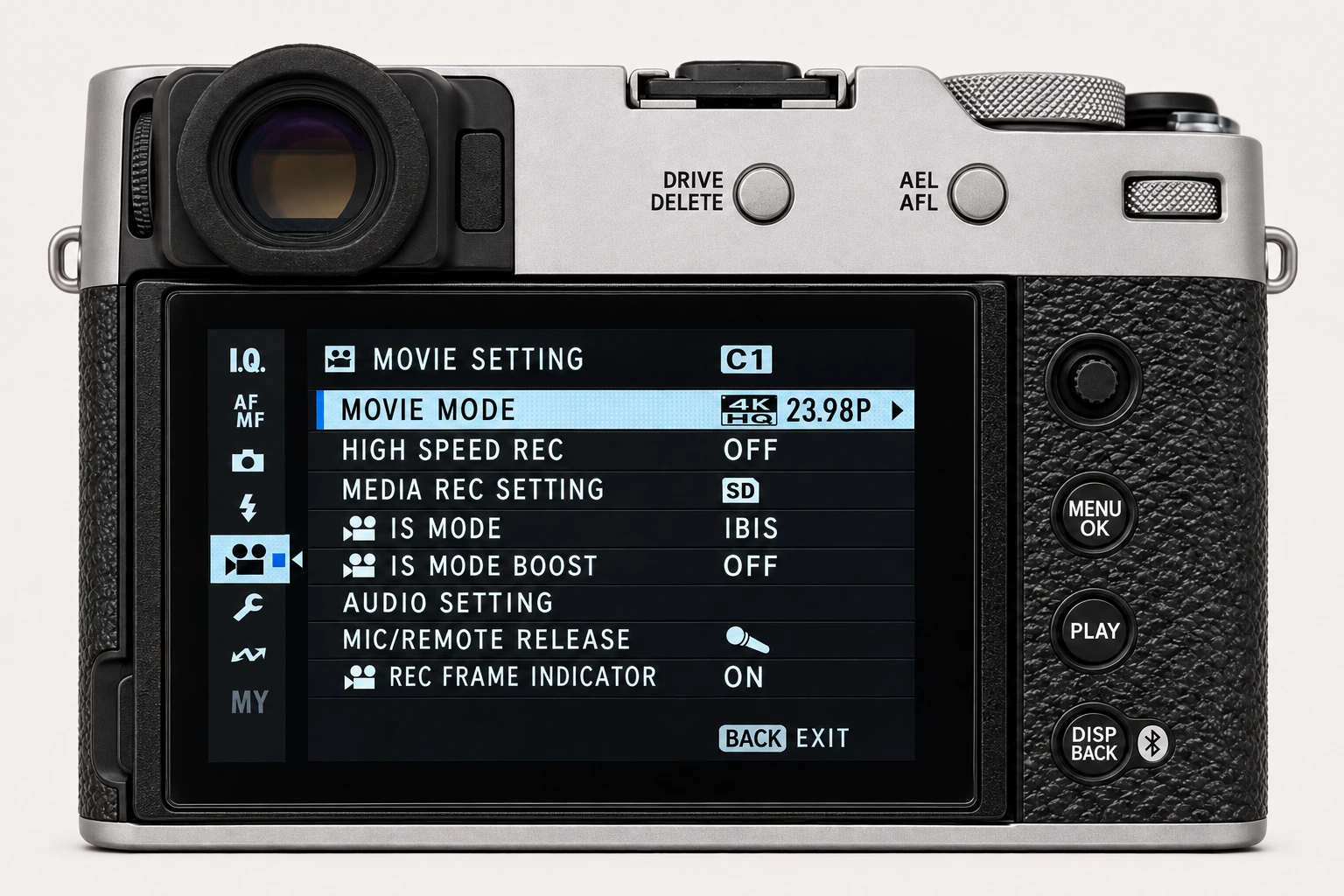
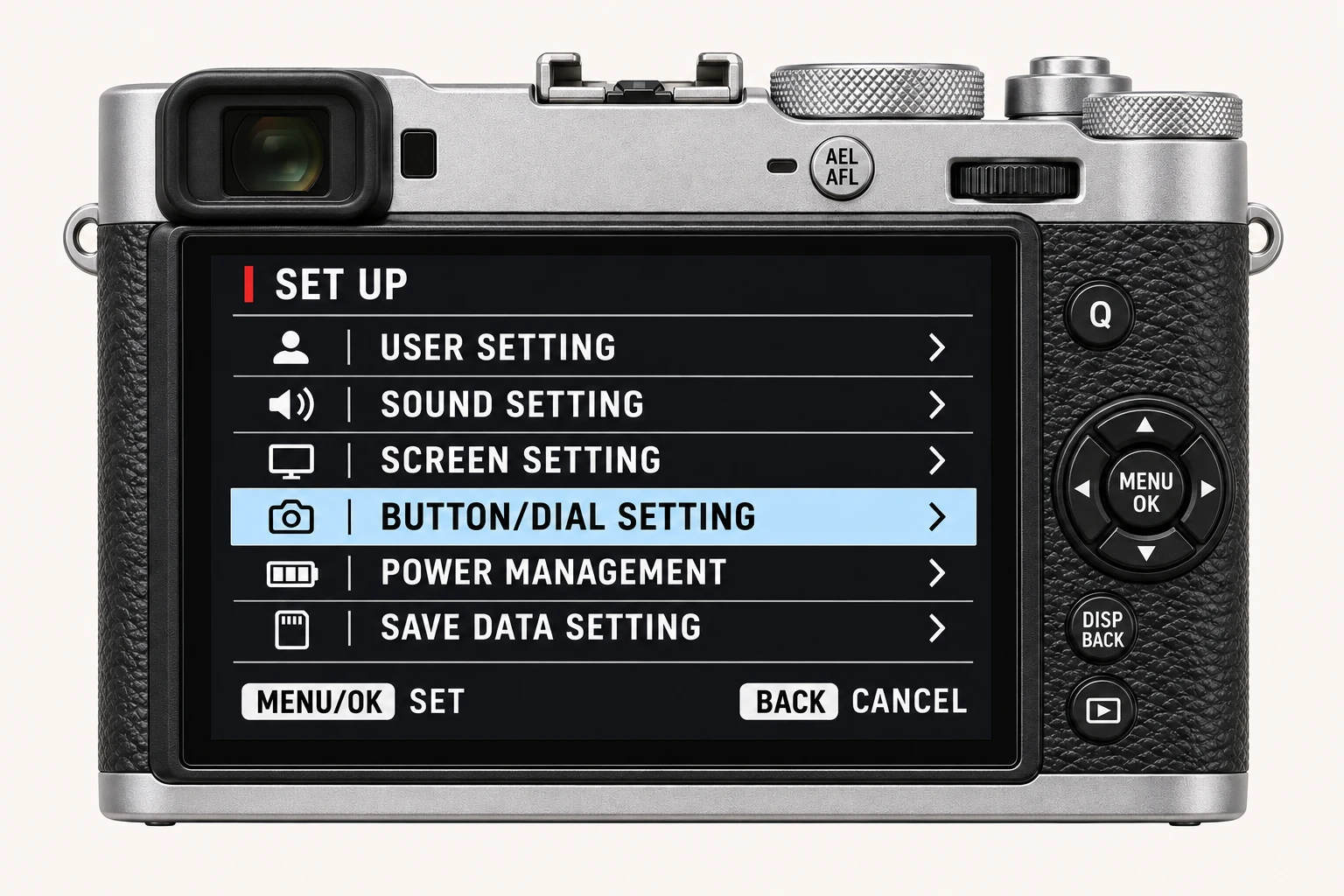
Open MENU/OK > IMAGE QUALITY SETTING in still-photo mode. IMAGE SIZE controls rendered dimensions and aspect ratio. IMAGE QUALITY decides which files the camera records and how strongly the rendered file is compressed. RAW RECORDING chooses compression for the RAF. SELECT JPEG/HEIF chooses the format of the rendered image. Changing one does not automatically answer the other three questions.
Image Size: resolution and aspect ratio
On the X100VI, Large 3:2 is 7728 × 5152 pixels in ordinary full-frame-area still shooting. Medium 3:2 is 5472 × 3648 and Small 3:2 is 3888 × 2592. The menu also offers 16:9, 1:1, 4:3 and 5:4 crops at each size. Choose the ratio for the composition and the size for your output. A crop removes part of the frame; it does not widen the lens. Crop and burst modes can change available dimensions. The remaining-picture count in your camera is a card-capacity estimate, not an image-resolution value.
Image Quality: Fine, Normal and RAW combinations
Fine uses less rendered compression than Normal. RAW stores the camera data for later interpretation; it is not a finished JPEG with the recipe baked into every pixel. Fine+RAW is a useful learning setup when you want both the camera look and an editable original, provided the larger storage requirement suits you.
| Option | Files and trade-off |
|---|---|
| FINE | A higher-quality rendered JPEG or HEIF. |
| NORMAL | A more compressed rendered file that uses less card space. |
| FINE+RAW | A Fine rendered file and a separate RAF. |
| NORMAL+RAW | A Normal rendered file and a separate RAF. |
| RAW | RAF only; check the developing software and retain the recipe settings separately. |
RAW Recording: lossless is different from lossy
UNCOMPRESSED stores the RAW without compression. LOSSLESS COMPRESSED reduces file size reversibly, retaining the image data. COMPRESSED uses non-reversible compression for smaller files. Check support in the RAW developer you actually use before a long shoot. A recipe changes how the camera renders its JPEG or HEIF, and a RAW developer may interpret the file differently; RAW compression is not a film-look adjustment.
| Recording type | Choose it for |
|---|---|
| UNCOMPRESSED | A workflow that specifically requires uncompressed RAF files. |
| LOSSLESS COMPRESSED | Smaller RAF files without discarding image data, if your software supports them. |
| COMPRESSED | A size-first workflow after checking your own files and developer support. |
JPEG or HEIF: follow the complete sharing path
JPEG is a practical starting point for broad compatibility. HEIF offers efficient compression, but support varies across apps and receiving devices. On the X100VI, HEIF disables Clarity and fixes Color Space to sRGB. Its card extension is .HIF; the manual describes a .HEIC extension for computer viewing and automatic extension changes during USB transfer. Keep the original and test your own transfer path rather than assuming every app handles the format identically.
Try it before committing a whole shoot
Photograph the same detailed scene as Fine+RAW, then compare Fine and Normal rendered files on your computer. Open each RAF compression type in your usual developer. If you want HEIF, transfer one file through the actual phone or desktop route and open it in the final receiving app. Check dimensions, appearance and metadata. Keep the card originals until the copies are verified.
Four recipes to try next
Choose a community recipe, check it against your camera and take it into the field.