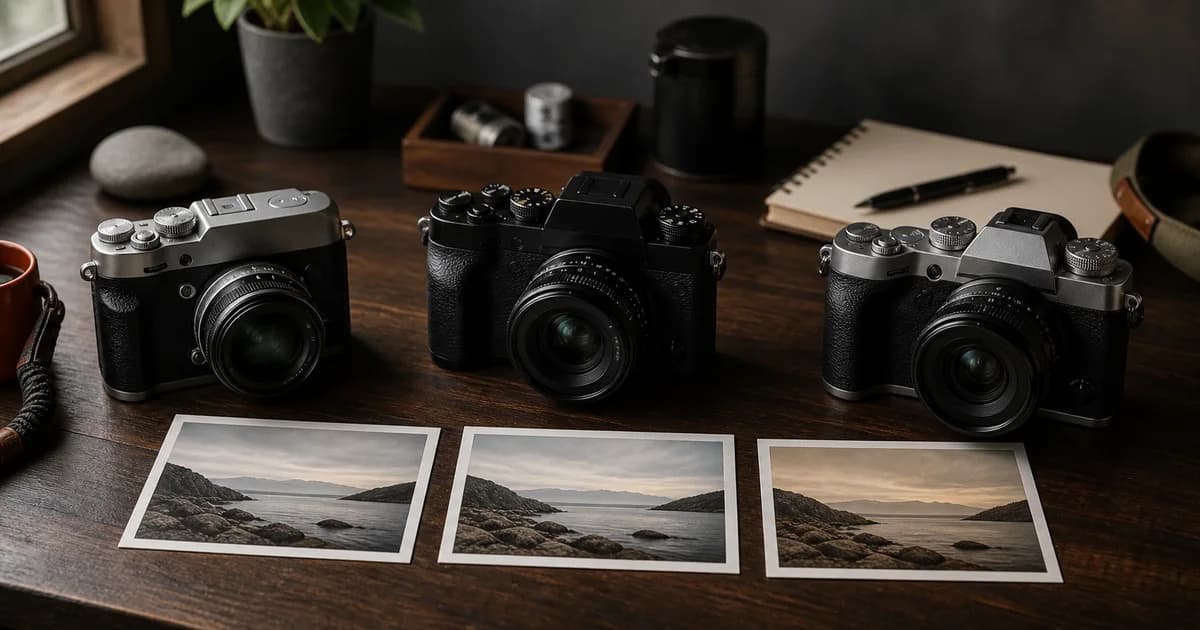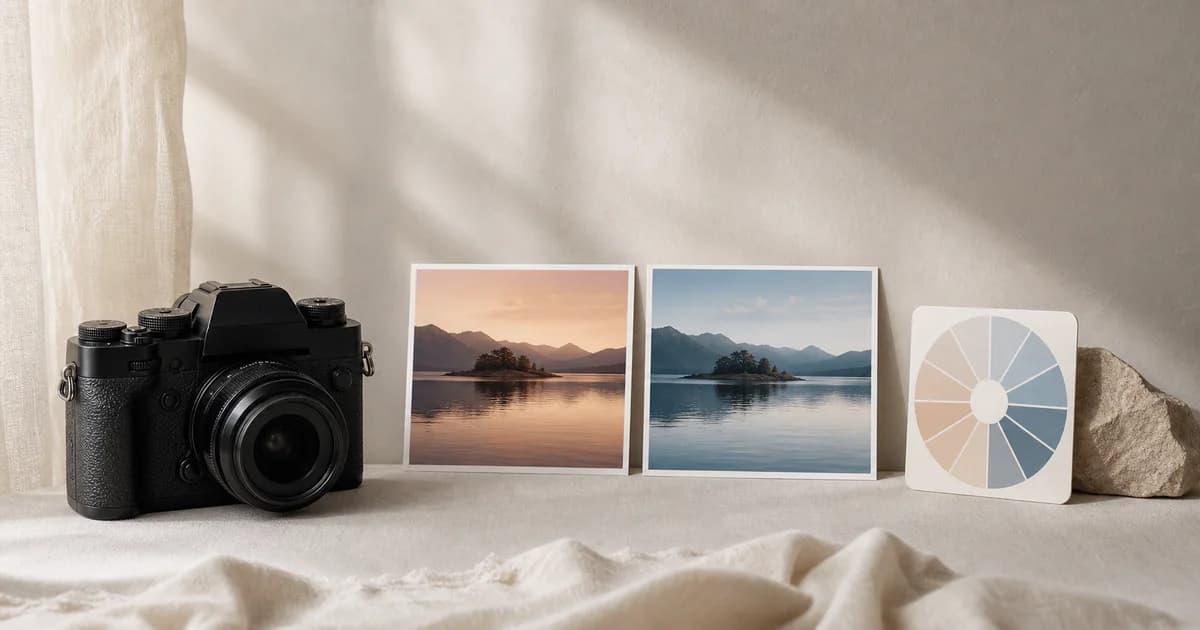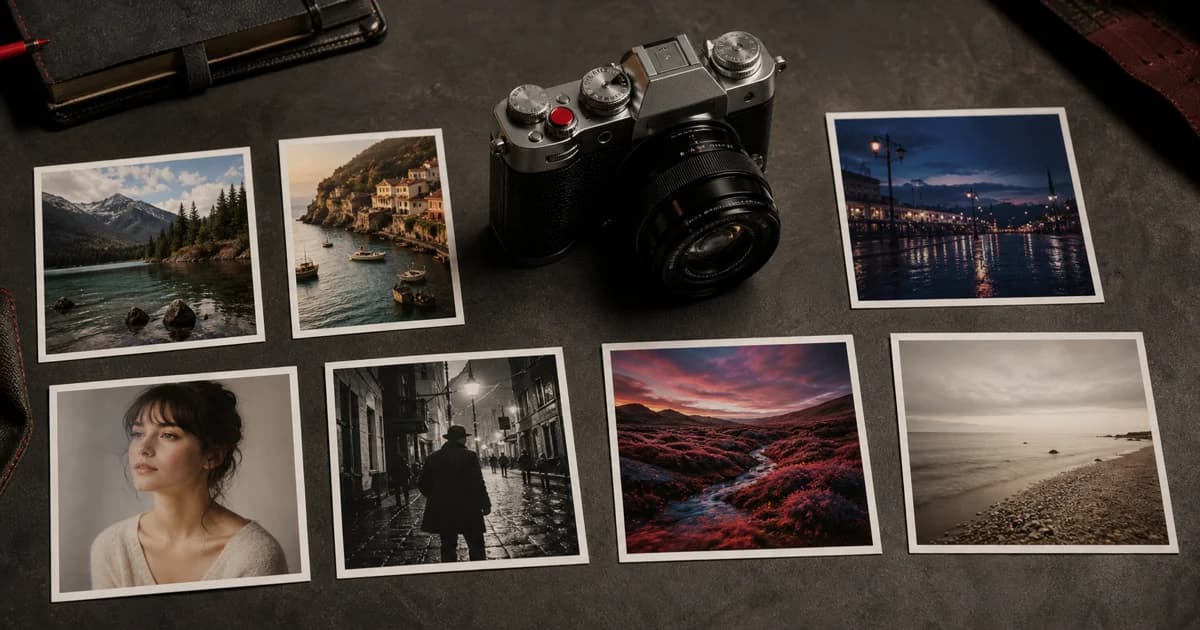

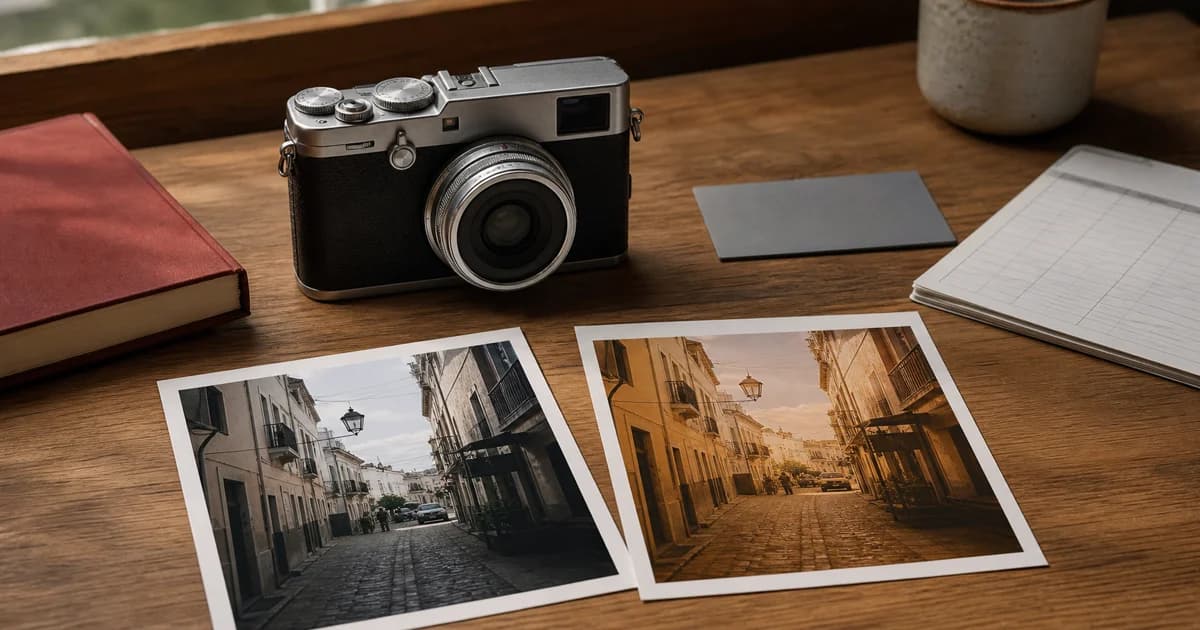
You copy a Fujifilm film simulation recipe exactly, take the first photograph, and immediately wonder what went wrong. The creator's sample looks subtle and cinematic; yours is orange, flat, overly contrasty, or simply ordinary.
This does not automatically mean the recipe is bad. A recipe is a chain of camera-specific JPEG decisions, and one mismatched link can change the result. Work through the checks below in order. Most problems can be found without randomly adjusting color or tone.
The 60-Second Fujifilm Recipe Check
- 1Confirm that the recipe was created for your exact camera or a fully compatible body.
- 2Copy both the white balance mode and its red/blue shift.
- 3Check that your ISO is high enough for DR200 or DR400 to engage.
- 4Set every supported JPEG parameter, including Grain Size, Clarity, and Color Chrome effects.
- 5Match the sample photographer’s exposure compensation before judging the colors.
If those five items are correct, continue with the detailed diagnosis. Do not compare two photographs taken in different light and assume the settings alone caused the difference. If you are unsure whether every value was saved, repeat the process with the step-by-step Fujifilm recipe installation guide.
1. The Recipe Is Not Fully Compatible With Your Camera
“X-Trans IV compatible” is useful shorthand, but it is not a promise that every fourth-generation camera has identical JPEG controls. Earlier bodies in a generation may lack Clarity, Grain Size, Color Chrome FX Blue, or a newer film simulation. Processor, firmware, and camera model matter alongside the sensor label.
Start with the exact camera named on the recipe page. If you use a different body, compare every field with your Image Quality menu. An unsupported setting is not a value you forgot to find; it is evidence that the original look can only be approximated.
The safest route is to browse Receptree recipes by camera and begin with looks published for your own model.
2. The Film Simulation Is Missing or Different
A recipe is built around a base simulation. Classic Chrome, Classic Negative, ETERNA, Reala Ace, and Nostalgic Neg. do not become interchangeable when the remaining values match. If your camera lacks the named simulation, substituting another one creates a new recipe rather than an exact conversion.
Also check similarly named options carefully. “Classic Neg.” is not Classic Chrome, and ETERNA Bleach Bypass is not standard ETERNA. Our Fujifilm film simulations guide explains the role of each base profile.
3. The White Balance Shift Was Not Copied
White balance is often the strongest source of a recipe's color character. “Auto” or “Daylight” is only half the instruction. A recipe may also specify a red and blue shift such as R+3, B−4. Leaving that shift at zero can remove the warmth, coolness, or color separation visible in the samples.
Check the signs as well as the numbers. Red +3 is not red −3. On cameras that do not store a separate shift in every custom bank, changing the shift for one white balance type may affect other recipes that use the same type. Name your C1–C7 custom settings clearly and keep the required shift in a recipe card or note.
4. Auto White Balance Is Reacting to Different Light
Even when Auto White Balance and its shift are entered correctly, Auto still responds to the scene. Shade, warm household LEDs, mixed shop lighting, and sunset can push the same recipe in very different directions. A warm shift that looks restrained at noon may make skin intensely orange under tungsten light.
Test the recipe in the type of light shown by its creator. If consistency matters more than adaptability, test a fixed Kelvin value—but understand that you are adapting the recipe. Record the changed value rather than continuing to share it as the original.
5. DR200 or DR400 Is Not Actually Engaged
Fujifilm's DR200 and DR400 modes need additional ISO headroom. The minimum selectable ISO depends on the camera, so confirm the requirement in your model's manual. If the intended dynamic-range mode is unavailable, your highlights and overall contrast can differ from the reference photograph.
Do not confuse Dynamic Range with D-Range Priority. D-Range Priority can take control of tone and dynamic-range behavior, which conflicts with recipes that specify their own highlight and shadow values. Unless the recipe explicitly calls for it, leave D-Range Priority off.
6. A Small JPEG Setting Is Missing
Clarity, Grain Size, Color Chrome Effect, and Color Chrome FX Blue can look secondary on a settings list, but together they affect local contrast, texture, saturated color, skies, and water. Copy the complete recipe—not only its film simulation, white balance, and tone curve.
- Clarity changes edge contrast and the sense of crispness or softness.
- Color Chrome Effect changes tonal rendering in highly saturated colors such as reds, yellows, and greens.
- Color Chrome FX Blue specifically affects tonal rendering in blues.
- Grain strength and size change texture and perceived sharpness.
If your camera does not offer one of these controls, leave the unavailable field out and label the result as an adaptation.
7. Exposure Compensation Does Not Match
Exposure compensation is frequently written as a range—such as +1/3 to +1—because it depends on the scene. It is not a decorative note. More exposure can open shadows, soften the apparent contrast, and brighten skin; less exposure can deepen color and make a recipe look moodier.
Use the histogram and protect important highlights, but begin near the recipe creator's recommendation. A perfectly copied recipe photographed one stop darker is not a fair visual comparison.
8. The Sample Image Was Made in Different Conditions
Recipes do not create the light. A pastel look demonstrated on an overcast morning will not produce the same palette under hard midday sun. Subject colors, weather, season, lens flare, and surrounding surfaces all influence the JPEG before you judge the recipe.
Build a useful test: photograph the same static subject from the same position, using the recipe and a neutral camera preset seconds apart. Then repeat in shade and direct sun. This tells you what the recipe changes without confusing settings with the scene.
9. You Are Comparing Screens Instead of Files
A bright camera LCD viewed outdoors can hide warm casts and crushed shadows. Phones often use vivid display modes, while social platforms may compress images or alter their presentation. Compare original JPEGs side by side on the same display before making recipe changes.
Also confirm that the reference is genuinely straight out of camera. Cropping does not change the recipe, but an added preset, contrast adjustment, or color grade means the displayed result is no longer a pure example of the listed settings.
A Reliable Test Workflow
- Reset or choose an unused custom bank so old values cannot remain unnoticed.
- Enter the film simulation and every supported recipe setting field by field.
- Save the bank, reopen it, and verify the white balance mode and shift.
- Photograph a neutral scene in daylight using the suggested exposure compensation.
- Shoot a second frame with a standard simulation as a control.
- Compare the original JPEGs on the same screen.
- Change only one setting at a time if the recipe still needs adaptation.
If you have a previous JPEG whose settings you want to reconstruct, Receptree Recipe Recognition can read supported metadata from an original Fujifilm file and prepare an editable recipe draft.
When You Should Adapt the Recipe
After the technical checks are complete, changing a recipe is not failure. A look may be accurate yet still unsuitable for your light, subjects, or taste. Make deliberate changes: reduce a warm WB shift for indoor portraits, soften the shadow tone for harsh sun, or lower grain for clean architectural detail.
Save the adapted version under a new name and document the camera used. That turns a frustrating mismatch into a repeatable recipe you understand—and one you can publish responsibly for photographers using the same body.
FAQ
Why does my Fujifilm recipe look different from the sample photos?
The usual causes are a camera compatibility mismatch, an incorrect white balance shift, different light, exposure compensation, or a setting such as Clarity or Color Chrome FX Blue that your camera does not support. Compare the complete recipe field by field before changing its values.
Can I use an X-Trans IV recipe on an X-Trans V camera?
Often, but the result is not guaranteed to be identical. Film simulation rendering and available JPEG controls can differ between camera generations. Use the recipe as a starting point, verify every supported setting, and test it in the light for which it was designed.
Why is Clarity or Color Chrome FX Blue missing on my Fujifilm camera?
Those controls are not available on every Fujifilm body, even when two cameras share the same broad sensor generation. A recipe that depends on an unavailable setting can only be approximated on that camera.
Why does DR200 or DR400 change the minimum ISO?
Fujifilm uses the additional ISO headroom to protect highlights and then adjusts the JPEG rendering. If the required ISO is not available or selected, the intended dynamic-range behavior may not be active.
Should I change a recipe until it matches my camera screen?
Not immediately. Camera display brightness, ambient light, and screen color can mislead you. Compare original JPEGs on the same calibrated display and shoot the same subject in the same light before adapting the recipe.
Start With a Recipe Made for Your Camera
The fastest way to avoid missing settings is to start with a recipe associated with your exact Fujifilm body. Open the Receptree community recipe library, filter by camera, inspect the complete settings, and compare sample images before assigning the look to a custom bank.